If you want to change/create your display message or any other message in a pop-up window when windows starts,
Goto Windows Registry and edit,
> Open Run, type regedit .ok
Navigate to HKEY_LOCAL_MACHINE\SOFTWARE\
Microsoft\Windows NT\CurrentVersion\Winlogon
Modify the key legalnoticecaption with your name or what you want to name the window.
Modify the key legalnoticetext with what you want the window to say.
Restart your system to see the change.
Related : Create Message when Xp Starts
Related : Troubleshooting Display Problems
How to find Signs of viruses in your Computer?
When you run an infected file and e-mail attachment on your computer but you might not realize that you've introduced a virus until you notice something is not quite right.
Here are some indicators that you will find if your computer viruses infected:
The first and basic sign your computer must runs more slowly than normal after viruses attack.
> Your computer stops responding after some time and stuck without any warning and sign or may be after some warning.
> Your computer crashes and restarts every few minutes with a message because some viruses tries to break windows security system then system automatically restart and after restart your system may be not in position to run properly and create any application failure problem.
> Data on your Hard disk create problem or disks and disk drives are inaccessible.
> You see unusual error messages after some time on your system like scan your system, your computer attempt by any other remote computer.
> You see distorted menus and dialog boxes disturbing your routine work.
> You may also see windows Says Install Antispyware,or any antivirus and if you go and do by this you helps to enter your system easily.Windows Won't Recommend to Install other than Windows Defender.
You Might also Use Spyware Doctor, Kaspersky Antivirus, Spybot - freeware Remover and more on Norton 360 and other antivirus programs are available now to get rid of these spyware and malware and many Trojan and Viruses..
Related : Signs of Virus
Related : Is Infected?
------------------------------------
Please Post Your Comments
Here are some indicators that you will find if your computer viruses infected:
The first and basic sign your computer must runs more slowly than normal after viruses attack.
> Your computer stops responding after some time and stuck without any warning and sign or may be after some warning.
> Your computer crashes and restarts every few minutes with a message because some viruses tries to break windows security system then system automatically restart and after restart your system may be not in position to run properly and create any application failure problem.
> Data on your Hard disk create problem or disks and disk drives are inaccessible.
> You see unusual error messages after some time on your system like scan your system, your computer attempt by any other remote computer.
> You see distorted menus and dialog boxes disturbing your routine work.
> You may also see windows Says Install Antispyware,or any antivirus and if you go and do by this you helps to enter your system easily.Windows Won't Recommend to Install other than Windows Defender.
You Might also Use Spyware Doctor, Kaspersky Antivirus, Spybot - freeware Remover and more on Norton 360 and other antivirus programs are available now to get rid of these spyware and malware and many Trojan and Viruses..
Related : Signs of Virus
Related : Is Infected?
------------------------------------
Please Post Your Comments
How to Remove Programs Entries From RegEdit?
Generally we use Add/Remove programs option in Control Panel to remove any unwanted program from our computer. Normally this may be due to poorly designed uninstaller with this program. That is why some programs may not be removed properly and a reference to this program remains in the computer registry. This reference in registry may be creating problems to run your computer smoothly. Here you need to delete this reference to edit your computer registry using RegEdit editor.
First go to Start button and open Run dialog box. Type here RegEdit and press Enter.
Now in editor Navigate to the given path
HKEY_LOCAL_MACHINE\SOFTWARE\Microsoft\Windows\CurrentVersion\Uninstall.
Here locate the entry created by your program with its name and select that entry from the list on the left panel and delete its key.
Close the Registry Editor and restart your computer, the program will be removed from your computer permanently.
Related Post: Uninstall from Registry
First go to Start button and open Run dialog box. Type here RegEdit and press Enter.
Now in editor Navigate to the given path
HKEY_LOCAL_MACHINE\SOFTWARE\Microsoft\Windows\CurrentVersion\Uninstall.
Here locate the entry created by your program with its name and select that entry from the list on the left panel and delete its key.
Close the Registry Editor and restart your computer, the program will be removed from your computer permanently.
Related Post: Uninstall from Registry
Kaspersky Antivirus 2009 Activation
Antivirus software for home or business. The world's fastest antivirus updates.Kaspersky 2009 is different from the previous versions. But make sure to keep your license key with you because when you do complete remove, everything will be gone.
After Installing the Kaspersky 2009 you can also add Kaspersky 7's key for the 2009 activation.So DO NOT delete your old kaspersky key..
Now we have to activate the Product...
For that Download the Key file attached with this post..
Before activation you have to change the Update Setting that is Turn Off the Automatically Update and turn on the Manually Update Run Mode.
Then goto Settings-Update-Settings
then inside the settings
Change the Radio button to Update Application Databasis Only
Then Apply, close
When the time of update Kapersky will check the key if the Update Application and Databasis Program modules radio button where selected but key will not check during Update of Application Databasis Only..because i have the success story and i running it for a month....
If You Use Kaspersky Products you Have to Buy the Valid Key from Kaspersky and Support their Products..
Download Key File
After Installing the Kaspersky 2009 you can also add Kaspersky 7's key for the 2009 activation.So DO NOT delete your old kaspersky key..
Now we have to activate the Product...
For that Download the Key file attached with this post..
Before activation you have to change the Update Setting that is Turn Off the Automatically Update and turn on the Manually Update Run Mode.
Then goto Settings-Update-Settings
then inside the settings
Change the Radio button to Update Application Databasis Only
|
|


When the time of update Kapersky will check the key if the Update Application and Databasis Program modules radio button where selected but key will not check during Update of Application Databasis Only..because i have the success story and i running it for a month....
If You Use Kaspersky Products you Have to Buy the Valid Key from Kaspersky and Support their Products..
Download Key File
How to clean a CD/DVD-Drive?
If your CD drive creating problem to read CD disc, taking time to read and showing message there is no disc in the drive. These are the symptoms of dirty or weak CD-drive lens, because dirty lens can create errors in reading or writing and soon will not work at all.
Follow the given steps to care and clean a CD-Drive.
> First make sure your discs are clean, unscratched and you are loaded it properly.
> Always use laser lens cleaner to clean drive lens.
> Insert the laser lens cleaner disc and play it for 2 to 3 min.
Using CD drive cleaner properly clean the CD-ROM laser from dust.If your drive still creating problem then open it and clean the lens with a cotton swab.
------------------------------------------------
Please Post Your Comments!!
Related : Cd/Dvd Cleaner
Related : CD/DVD Cleaning Tips
Follow the given steps to care and clean a CD-Drive.
> First make sure your discs are clean, unscratched and you are loaded it properly.
> Always use laser lens cleaner to clean drive lens.
> Insert the laser lens cleaner disc and play it for 2 to 3 min.
Using CD drive cleaner properly clean the CD-ROM laser from dust.If your drive still creating problem then open it and clean the lens with a cotton swab.
------------------------------------------------
Please Post Your Comments!!
Related : Cd/Dvd Cleaner
Related : CD/DVD Cleaning Tips
How to Enable the Windows Task Manager?
Windows Task Manager is used to view the status of running applications, active processes, CPU and Page file usage history and active user in windows environment. As a system administrator you can mange the all features of Windows Task Manager, you can end task any running application and set the priority of any running process according to application importance. By default Windows Task Manager Status is enabled, but a user can also disable or enable it manually. But some time a registry hack applies on windows task manager to disable it and your system give you a message” Task Manager has been disabled by your administrator.” then you should enable it with editing the system registry or using Group Policy Editor.
Before proceeding further, first scan your system with up-to-date antivirus, and then follow the given steps to enable it using group policy editor.
To enable this feature, you will need to be logged into your computer with administrative rights.
Now click on Start button and type “Gpedit.msc” in Run option then press OK.
In Group Policy Editor, expand the “Administrative Templates” > “System” then “Ctrl+Alt+Del Options”, under the User Configuration option.
Now in right side of panel “Ctrl+Alt+Del Options” double click on “Remove Task Manager” to change it setting. Here set the option “Disable” to “Enable” or “Not configured” and your task manager is available once again.
------------------------------------------------
Please Post your comments!!
Related : Enable Task Manager
Related : Restore Task Manager
Before proceeding further, first scan your system with up-to-date antivirus, and then follow the given steps to enable it using group policy editor.
To enable this feature, you will need to be logged into your computer with administrative rights.
Now click on Start button and type “Gpedit.msc” in Run option then press OK.
In Group Policy Editor, expand the “Administrative Templates” > “System” then “Ctrl+Alt+Del Options”, under the User Configuration option.
Now in right side of panel “Ctrl+Alt+Del Options” double click on “Remove Task Manager” to change it setting. Here set the option “Disable” to “Enable” or “Not configured” and your task manager is available once again.
------------------------------------------------
Please Post your comments!!
Related : Enable Task Manager
Related : Restore Task Manager
How to remove one operating system from dual boot windows?
In this age all people know that we can install two or more operating systems on the same partition or on same hard drive. For example you can install windows 98 with windows 2000 or Windows XP and also windows XP with Windows vista. You can install both operating systems on the same partition (both on C: drive) or on different partitions (one operating system on C drive and other on D drive). But installing more than one operating system on same drive kill the system performance.
In dual operating systems, when you turn on the computer, it gives you a choice of windows 2000 or windows XP to use. Whether you have installed your both operating systems on C drive or one on C drive and other on D drive, system store the root files of the both operating systems on C drive, so you can delete one any operating system with editing these root files. There is no any direct method to uninstall one operating system; you can do this only with format the partition or delete windows folder after editing the “Boot.ini” file.
The given steps to edit the Boot.ini to delete one operating system:
In case any problem after editing, first backup the Boot.ini file.
Click Start button then type sysdm.cpl in Run option then press Enter for next.
Now on the Advance tab, click on Setting under the Startup and Recovery area.
Under the System Startup area, click on Edit button, and you will get a Notepad editable file.
If you have installed two operating systems (windows XP and Windows 2000) on same hard disk then it will look as in Boot.ini.
[boot loader]
timeout=30
default=multi(0)disk(0)rdisk(0)partition(1)\WINDOWS
[operating systems]
multi(0)disk(0)rdisk(0)partition(1)\WINDOWS="Windows XP Professional" /fastdetect
multi(0)disk(0)rdisk(0)partition(2)\WINNT="Windows 2000 Professional" /fastdetect
According to above example, if you want to delete windows 2000 then delete the “multi(0)disk(0)rdisk(0)partition(2)\WINNT="Windows 2000 Professional" /fastdetect” line and save the file.
But if you want to delete windows XP then delete the “multi(0)disk(0)rdisk(0)partition(1)\WINDOWS="Windows XP Professional" /fastdetect” line and save the file.
At the end delete the operating system folder that you no longer require or format the drive where the other operating system contains.
Now close the all programs and restart your computer after any changes to go into effect.
Related : Boot.ini Editing
Related : Dual Boot
In dual operating systems, when you turn on the computer, it gives you a choice of windows 2000 or windows XP to use. Whether you have installed your both operating systems on C drive or one on C drive and other on D drive, system store the root files of the both operating systems on C drive, so you can delete one any operating system with editing these root files. There is no any direct method to uninstall one operating system; you can do this only with format the partition or delete windows folder after editing the “Boot.ini” file.
The given steps to edit the Boot.ini to delete one operating system:
In case any problem after editing, first backup the Boot.ini file.
Click Start button then type sysdm.cpl in Run option then press Enter for next.
Now on the Advance tab, click on Setting under the Startup and Recovery area.
Under the System Startup area, click on Edit button, and you will get a Notepad editable file.
If you have installed two operating systems (windows XP and Windows 2000) on same hard disk then it will look as in Boot.ini.
[boot loader]
timeout=30
default=multi(0)disk(0)rdisk(0)partition(1)\WINDOWS
[operating systems]
multi(0)disk(0)rdisk(0)partition(1)\WINDOWS="Windows XP Professional" /fastdetect
multi(0)disk(0)rdisk(0)partition(2)\WINNT="Windows 2000 Professional" /fastdetect
According to above example, if you want to delete windows 2000 then delete the “multi(0)disk(0)rdisk(0)partition(2)\WINNT="Windows 2000 Professional" /fastdetect” line and save the file.
But if you want to delete windows XP then delete the “multi(0)disk(0)rdisk(0)partition(1)\WINDOWS="Windows XP Professional" /fastdetect” line and save the file.
At the end delete the operating system folder that you no longer require or format the drive where the other operating system contains.
Now close the all programs and restart your computer after any changes to go into effect.
Related : Boot.ini Editing
Related : Dual Boot
How to speed up your slow internet connection?
This special tip for those who are still using any slow dial-up internet connection due to unavailability of any broadband connection in their area. The Web Accelerator application designed to provide the full acceleration for your routine web sites browsing. With the help of Web Accelerator you can browse your internet 4 to 6 times faster than normal dial-up connection. Basically this services compressing the website text data, images and heavy graphics to open or download this data with high speed.
This technique is more useful for static websites and for email applications but don't accelerate with secure and downloading audio or video files. Some good web accelerator retains your system cache to reuse websites with faster speed and can also block windows pop-up. If you are using FTP sites and downloading any program using dial-up, then web accelerator is not for you. There are various web accelerator software are free available on internet, visit and download it to enjoy your connection.
Related : Web Accelerator
Related : How to Speed up Dial up Internet Connection
Related : Internet Booster
This technique is more useful for static websites and for email applications but don't accelerate with secure and downloading audio or video files. Some good web accelerator retains your system cache to reuse websites with faster speed and can also block windows pop-up. If you are using FTP sites and downloading any program using dial-up, then web accelerator is not for you. There are various web accelerator software are free available on internet, visit and download it to enjoy your connection.
Related : Web Accelerator
Related : How to Speed up Dial up Internet Connection
Related : Internet Booster
Windows Vista Help Tips
Windows Vista, the latest operating system from Microsoft, has an improved interface, support for desktop gadgets, better diagnostic tools and let's face it - it just looks cool! With these improvements though has come a new list of problems, many unique only to Windows Vista. These tips and tricks will help you make the most out Windows Vista!
Access Device Manager From a Command Prompt in Windows Vista
A really quick way to access Device Manger in Windows Vista is from the command prompt. Just type a quick command and Device Manager starts right up! Follow these simple steps to access Device Manager from a command prompt.
Access Device Manager From the Computer Management Utility in Windows Vista
Accessing Device Manger from within the Computer Management utility couldn't be simpler. Follow these steps to access Device Manager from within the Computer Management utility in Windows Vista.
Access Device Manager From the Control Panel System Applet in Windows Vista
One way to access Device Manger in Windows Vista is from the System applet found in the Control Panel. Follow these simple steps to access Device Manager from Control Panel's System applet:
Automatically Log On To Windows Vista
If security isn't a big concern, having Windows Vista log on to your user account automatically can save you tons of time during startup.
Backup Registry Keys in Windows Vista
Always backup registry keys before making changes in the Windows Registry. Export registry keys from the Windows Vista Registry with these easy steps.
Backup the Entire Registry in Windows Vista
Backing up the entire Windows Vista registry can be useful when making many changes to the Windows Registry. Follow these easy steps to backup the entire registry in Windows Vista.
Change Drive Letters in Windows Vista
For any number of reasons, you may want to change the drive letter of a hard drive partition, CD or DVD drive in Windows Vista. The Computer Management tool in Vista makes this job easy.
Change the Start Menu Power Button Action
By default, Windows Vista sets the start menu power button to sleep mode. Save yourself some time and energy by configuring the power button to do just that - power down your PC.
Change the Windows Vista Product Key Code
Changing the Windows Vista product key may be necessary if you discover your current key is pirated or illegal but you don't want to reinstall Windows Vista to activate your new legal key.
Change Your Windows Vista Logon Password
Changing your password in Windows Vista is pretty easy and is something you should do if you're having problems remembering your current password.
Create a Windows Vista Logon Password
Creating a Windows Vista account password for the first time is very simple. You're just a few clicks away from setting up a new password for your Windows Vista account.
Create a Windows Vista Password Reset Disk
Creating a Windows Vista password reset disk can really come in handy if you forget your account password. With it, you can easily reset your password and get right in to Windows Vista.
Delete Registry Keys in Windows Vista
You may need to delete registry keys from the Windows Registry to fix a problem or complete a registry hack. Remove registry keys from the Windows Vista Registry with these easy steps.
Delete Your Windows Vista Logon Password
Deleting your Windows Vista account password will allow you to completely bypass the normal logon process. While it isn't a very security-minded thing to do, removing your Windows Vista password might be something to consider if you have problems remembering your password.
Disable a Device in Device Manager in Windows Vista
You may want to disable a device in Device Manager if you want Windows Vista to ignore it, if it's using valuable system resources, or maybe as part of a troubleshooting step.
Disable Low Disk Space Checks
Are those low disk space warnings in Windows Vista annoying you? Would you like to speed up Windows Vista a little? Find out how to easily turn off the low disk space warnings.
Disable Taskbar Button Grouping
Have you ever "lost" a window because it was grouped with other windows in the taskbar at the bottom of your Windows XP or Vista PC? Taskbar grouping may be handy for some but for most it's just an annoyance. Stop Windows from doing this once and for all.
Disable the Automatic Restart on System Failure in Windows Vista
Windows Vista is setup by default to restart immediately after a major system problem. This reboot usually happens too fast to see the error message on screen.
Disable Thumbnail Previews in Windows Vista Explorer
By default, Windows Vista generates a preview thumbnail for nearly every file when viewed in Windows Explorer. Yes - thumbnails can be really useful for quick photo viewing, but disabling these thumbnail previews in Windows Explorer can really speed things up.
Enable a Device in Device Manager in Windows Vista
Each hardware devices listed in Device Manager must be enabled if you plan on utilizing it. Follow these easy steps to enable a device from within Device Manager in Windows Vista
Find the Windows Vista Product Key Code
The Windows Vista product key code can be difficult to locate. You need your Windows Vista key code to reinstall Windows Vista so follow these simple steps to locate the key.
Find What Service Pack Level Your Windows Vista PC Is Running
Knowing what service pack is installed on your Windows Vista system is important for a number of reasons.
"Help! I Forget My Windows Vista Password!"
So you forgot your Windows Vista password? Don't worry - it happens to the best of us. We're supposed to use secure passwords by making them difficult to remember but sometimes we make them so hard to remember that we forget them ourselves!
"How Do I Open Windows Vista Device Manager?"
You may need to open Device Manager in Windows Vista for a number of reasons. Open Device Manager in Windows Vista from the Computer Management utility, the System applet in Control Panel, or from a command prompt.
Restore Registry Keys in Windows Vista
You can restore a registry key after a registry edit if you have a backup if the key. Import registry keys into Windows Vista Registry with these easy steps.
Top 5 Windows Vista System Utility Gadgets
Windows Vista gadgets can do more than show the weather and keep you updated on the latest news. The Windows Vista Sidebar can also be used to install gadgets that are useful as system utilities that keep track of the resources Windows Vista is using.
View a Device's Status in Device Manager in Windows Vista
Viewing the status of a piece of hardware is necessary if it's not working properly or if you were warned of an issue by a yellow exclamation point in Device Manager.
"Why is There a Black Arrow in Device Manager?"
A black arrow next to a hardware device in Device Manager might not be a problem. No matter how the black arrow showed up in Device Manger, there's usually a really easy solution.
"Windows Vista: The Missing Manual" Book Review
Windows Vista - The Missing Manual lives up fully to the phrase stamped on the front of the book - The book that should have been in the box. You can say that again.
Related : Vista Tips
Access Device Manager From a Command Prompt in Windows Vista
A really quick way to access Device Manger in Windows Vista is from the command prompt. Just type a quick command and Device Manager starts right up! Follow these simple steps to access Device Manager from a command prompt.
Access Device Manager From the Computer Management Utility in Windows Vista
Accessing Device Manger from within the Computer Management utility couldn't be simpler. Follow these steps to access Device Manager from within the Computer Management utility in Windows Vista.
Access Device Manager From the Control Panel System Applet in Windows Vista
One way to access Device Manger in Windows Vista is from the System applet found in the Control Panel. Follow these simple steps to access Device Manager from Control Panel's System applet:
Automatically Log On To Windows Vista
If security isn't a big concern, having Windows Vista log on to your user account automatically can save you tons of time during startup.
Backup Registry Keys in Windows Vista
Always backup registry keys before making changes in the Windows Registry. Export registry keys from the Windows Vista Registry with these easy steps.
Backup the Entire Registry in Windows Vista
Backing up the entire Windows Vista registry can be useful when making many changes to the Windows Registry. Follow these easy steps to backup the entire registry in Windows Vista.
Change Drive Letters in Windows Vista
For any number of reasons, you may want to change the drive letter of a hard drive partition, CD or DVD drive in Windows Vista. The Computer Management tool in Vista makes this job easy.
Change the Start Menu Power Button Action
By default, Windows Vista sets the start menu power button to sleep mode. Save yourself some time and energy by configuring the power button to do just that - power down your PC.
Change the Windows Vista Product Key Code
Changing the Windows Vista product key may be necessary if you discover your current key is pirated or illegal but you don't want to reinstall Windows Vista to activate your new legal key.
Change Your Windows Vista Logon Password
Changing your password in Windows Vista is pretty easy and is something you should do if you're having problems remembering your current password.
Create a Windows Vista Logon Password
Creating a Windows Vista account password for the first time is very simple. You're just a few clicks away from setting up a new password for your Windows Vista account.
Create a Windows Vista Password Reset Disk
Creating a Windows Vista password reset disk can really come in handy if you forget your account password. With it, you can easily reset your password and get right in to Windows Vista.
Delete Registry Keys in Windows Vista
You may need to delete registry keys from the Windows Registry to fix a problem or complete a registry hack. Remove registry keys from the Windows Vista Registry with these easy steps.
Delete Your Windows Vista Logon Password
Deleting your Windows Vista account password will allow you to completely bypass the normal logon process. While it isn't a very security-minded thing to do, removing your Windows Vista password might be something to consider if you have problems remembering your password.
Disable a Device in Device Manager in Windows Vista
You may want to disable a device in Device Manager if you want Windows Vista to ignore it, if it's using valuable system resources, or maybe as part of a troubleshooting step.
Disable Low Disk Space Checks
Are those low disk space warnings in Windows Vista annoying you? Would you like to speed up Windows Vista a little? Find out how to easily turn off the low disk space warnings.
Disable Taskbar Button Grouping
Have you ever "lost" a window because it was grouped with other windows in the taskbar at the bottom of your Windows XP or Vista PC? Taskbar grouping may be handy for some but for most it's just an annoyance. Stop Windows from doing this once and for all.
Disable the Automatic Restart on System Failure in Windows Vista
Windows Vista is setup by default to restart immediately after a major system problem. This reboot usually happens too fast to see the error message on screen.
Disable Thumbnail Previews in Windows Vista Explorer
By default, Windows Vista generates a preview thumbnail for nearly every file when viewed in Windows Explorer. Yes - thumbnails can be really useful for quick photo viewing, but disabling these thumbnail previews in Windows Explorer can really speed things up.
Enable a Device in Device Manager in Windows Vista
Each hardware devices listed in Device Manager must be enabled if you plan on utilizing it. Follow these easy steps to enable a device from within Device Manager in Windows Vista
Find the Windows Vista Product Key Code
The Windows Vista product key code can be difficult to locate. You need your Windows Vista key code to reinstall Windows Vista so follow these simple steps to locate the key.
Find What Service Pack Level Your Windows Vista PC Is Running
Knowing what service pack is installed on your Windows Vista system is important for a number of reasons.
"Help! I Forget My Windows Vista Password!"
So you forgot your Windows Vista password? Don't worry - it happens to the best of us. We're supposed to use secure passwords by making them difficult to remember but sometimes we make them so hard to remember that we forget them ourselves!
"How Do I Open Windows Vista Device Manager?"
You may need to open Device Manager in Windows Vista for a number of reasons. Open Device Manager in Windows Vista from the Computer Management utility, the System applet in Control Panel, or from a command prompt.
Restore Registry Keys in Windows Vista
You can restore a registry key after a registry edit if you have a backup if the key. Import registry keys into Windows Vista Registry with these easy steps.
Top 5 Windows Vista System Utility Gadgets
Windows Vista gadgets can do more than show the weather and keep you updated on the latest news. The Windows Vista Sidebar can also be used to install gadgets that are useful as system utilities that keep track of the resources Windows Vista is using.
View a Device's Status in Device Manager in Windows Vista
Viewing the status of a piece of hardware is necessary if it's not working properly or if you were warned of an issue by a yellow exclamation point in Device Manager.
"Why is There a Black Arrow in Device Manager?"
A black arrow next to a hardware device in Device Manager might not be a problem. No matter how the black arrow showed up in Device Manger, there's usually a really easy solution.
"Windows Vista: The Missing Manual" Book Review
Windows Vista - The Missing Manual lives up fully to the phrase stamped on the front of the book - The book that should have been in the box. You can say that again.
Related : Vista Tips
Compress files in Winrar using advanced parameters?
This will help you to manage the computer disk space using file compression utilities. You can run the data compression utility with advanced compression parameters to compress 15% more than normal method that you do not access often. Common file compression utility include Winrar is the most powerful and popular tool than other compression tools. You can download this tool from rarlab.com . Download it and run the easy setup.
Follow the given steps to compress your data with advanced parameters:
After installation winrar,
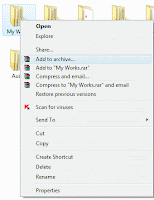
Now right click on your file and then select the option "Add to archive" from the context menu.
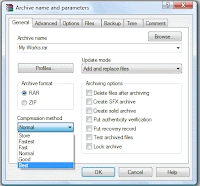
Here a window dialog will appear with title "Archive name and Parameters". In the General tab, click on "Compression Method" button to select the "Best" option from dropdown menu.You may see the difference between the archives that you created when you Turn on or off the Create Solid Archive Checkbox in the General Tab.
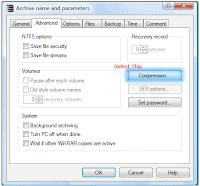
Now select the Advanced tab and click on Compression button to display the advanced compression parameters.
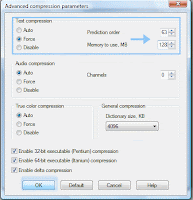
Now under the "Text Compression" area, select "Force" radio button and change the "Prediction order" value to 63 then change "Memory to use" type to 128. Now click Ok button to finish the process.
This all compression method will help you to compress your data 15% more than normal method.
Follow the given steps to compress your data with advanced parameters:
After installation winrar,
Now right click on your file and then select the option "Add to archive" from the context menu.

Here a window dialog will appear with title "Archive name and Parameters". In the General tab, click on "Compression Method" button to select the "Best" option from dropdown menu.You may see the difference between the archives that you created when you Turn on or off the Create Solid Archive Checkbox in the General Tab.

Now select the Advanced tab and click on Compression button to display the advanced compression parameters.

Now under the "Text Compression" area, select "Force" radio button and change the "Prediction order" value to 63 then change "Memory to use" type to 128. Now click Ok button to finish the process.

This all compression method will help you to compress your data 15% more than normal method.
How to speed up the Start Menu of your Windows
If you are still working with old or slow computer but don't worry, you can give surprise to your friends with some changing in windows registry. Edit your computer registry keys to speed up your computer's start menu, because the default speed of start menu is slow. After these changes your computer start menu will response like latest computer.
Follow this Instructions to change the speed of Start Menu.
First click on Start button then type Regedit in Run option.
In Registry Editor panel go to the path:
HKEY_CURRENT_USER \ Control Panel \ Desktop \ MenuShowDelay
By default the value "MenuShowDelay=400", but you can set value between 0 to 400. Now put the value "MenuShowDelay"=0 to speed up.
Now close the registry editor and restart your computer after any changes to go into effect.
==================================
Please Post Your comments!!
Follow this Instructions to change the speed of Start Menu.
First click on Start button then type Regedit in Run option.
In Registry Editor panel go to the path:
HKEY_CURRENT_USER \ Control Panel \ Desktop \ MenuShowDelay
By default the value "MenuShowDelay=400", but you can set value between 0 to 400. Now put the value "MenuShowDelay"=0 to speed up.
Now close the registry editor and restart your computer after any changes to go into effect.
==================================
Please Post Your comments!!
How to uninstall the windows XP using command prompt?
This will help you to uninstall the upgraded version of windows XP using the command prompt options. If you have upgraded your operating system from the previous versions of windows 98 Second Edition, or Windows Millennium Edition (Me) and now you wants to revert to the operating system that was previously installed on your computer. Windows XP can be removed by uninstalling from a Command Prompt option in Safe mode because XP includes the Uninstall Windows XP option.
Follow the given steps to revert to the operating system that was previously installed on your computer:
To manage windows XP, first you should log onto your computer with administrative rights.
First boot your system in Safe mode by pressing F8 button at the same time before the windows logo appears.
After loading, log into your Adminstrator account that appeared on the logon screen then,
First click on Start button and type cmd in Run option then press Ok button to display the Command Prompt.
At the command prompt type cd/ command and press enter.
Now again type the command cd\windows\system32 and press enter button. After execution of this command, system will change the previous directory mode.
Now type the command at command prompt osuninst.exe to start the process.
Now on the computer screen, follow the instructions on the screen to begin uninstalling Windows XP from your computer to restore the previous operating system.
Follow the given steps to revert to the operating system that was previously installed on your computer:
To manage windows XP, first you should log onto your computer with administrative rights.
First boot your system in Safe mode by pressing F8 button at the same time before the windows logo appears.
After loading, log into your Adminstrator account that appeared on the logon screen then,
First click on Start button and type cmd in Run option then press Ok button to display the Command Prompt.
At the command prompt type cd/ command and press enter.
Now again type the command cd\windows\system32 and press enter button. After execution of this command, system will change the previous directory mode.
Now type the command at command prompt osuninst.exe to start the process.
Now on the computer screen, follow the instructions on the screen to begin uninstalling Windows XP from your computer to restore the previous operating system.