1. Login as Administrator
2. Go to Start/Run and type in cmd and click OK.
At the prompt type cipher /r:Eagent and press enter
This prompt will then display:
Please type in the password to protect your .PFX file:
Type in your Administrator password
Re-confirm your Administrator password
The prompt will then display
Your .CER file was created successfully.
Your .PFX file was created successfully.
The Eagent.cer and Eagent.pfx files will be saved in the current directory that is shown at the command prompt. Example: The command prompt displays C:\Documents and Settings\admin> the two files are saved in the admin folder. (For security concerns, you should house the two files in your Administrator folder or on a floppy disk).
3. Go to Start/Run and type in certmgr.msc and click OK. This will launch the Certificates Manager. Navigate to Personal and right click on the folder and select All Tasks/Import. The Certificate Import Wizard will appear.
Click Next. Browse to the C:\Documents and Settings\admin folder. In the Open dialog box, change the Files of Type (at the bottom) to personal Information Exchange (*.pfx,*.P12). Select the file Eagent.pfx and click Open. Click Next.
Type in your Administrator password (leave the two checkboxes blank) and click Next. Make sure the Radio button is active for the first option (Automatically select the certificate store based on the type of certifcate). Click Next. Click Finish. (You'll receive a message that the import was successful).
To confirm the import, close Certificates Manager and re-open it. Expand the Personal folder and you will see a new subfolder labeled Certificates. Expand that folder and you will see the new entry in the right side column. Close Certificate Manager.
4. Go to Start/Run and type in secpol.msc and click OK. This will launch the Local Security Policy. Expand the Public Key Policies folder and then right click on the Encrypted File System subfolder and select Add Data Recovery Agent... The Wizard will then display. Click Next. Click the Browse Folders... button.
Browse to the C:\Documents and Settings\admin folder. Select the Eagent.cer file and click Open. (The wizard will display the status User_Unknown. That's ok). Click Next. Click Finish. You will see a new entry in the right side column. Close the Local Security Policy.
You, the Administrator are now configured as the default Recovery Agent for All Encrypted files on the Local Machine.
To Recover Encrypted files:
Scenario #1
If you have completed the above steps BEFORE an existing user encrypted his/her files, you can log in to your Administrator account and navigate to the encrypted file(s). Double click on the file(s) to view the contents.
Scenario #2
If you have completed the above steps AFTER an existing user has already encrypted his/her files, you must login to the applicable User's User Account and then immediately logout. Next, login to your Administrator account and navigate to the encrypted file(s). Double click on the file(s) to view the contents.
*Warning
Do not Delete or Rename a User's account from which will want to Recover the Encrypted Files. You will not be able to de-crypt the files using the steps outlined above.
How to Clean and Remove Trojan.Win32.Obfuscated.gx, Trojan.Win32.agent.akk, Trojan.Zlob and more.
The system constantly prompts a “Critical System Error!” pop up message saying “Your browser was infected by Trojan.Win32.Obfuscated.gx. You need to clean your system immediately, in other case it can be crashed soon! Click OK to download the high-tech antispyware protection software! (Recommended).” The pop up appears randomly, such as when opening a URL using IE, clicking on a link on web page or clicking on a file item in Windows Explorer.
If users ‘infected’ click on OK button to download the high-tech antispyware remover, an executable with file name as defender-install.exe will be offered. Beside, the Google, Yahoo! and Windows Live search results may also be hijacked where clicking on links in search results will direct users to incorrect and misleading websites rather than intended sites. Worse of all, the infection warning message may appear in the search results page too.
Trojan.Win32.Obfuscated.gx (can also be known as Trojan.Win32, Trojan.Win32.agent.akk, Trojan.Zlob, Trojan.Zlob-X.a, Trojan.Win32.LinkReplacer, Trojan.Win32.StarField, Trojan.Win32.Startpage.fq, Trojan.Agent, Trojan.Win32.Gorshok.a, Worm.Win32.Sober, Trojan.Vundo, Trojan.KillAV, Trojan.Win32.Patched, Trojan.Win32.CP4000, Trojan Win32/Qoologic, Trojan Win32.Murlo and other unknown trojan) is in essence not a virus by itself, instead is a malicious trick by new rogue anti-spyware program such as IE Defender or Files Secure to con users by displaying one of the Trojan listed above as their scan results in fake system security alerts, to mislead and trick users into downloading and subsequently paying to buy the rogue antispyware program just to simply remove the Trojan that they planted on users’ computer themselves.
The Trojan.Win32.Obfuscated.gx Trojan or the malware can infect a computer through installing a fake video codec which is asked to install when playing video, usually adult contents and sexually explicit videos downloaded from P2P sharing sites or torrents, such as the infamous Edison Chen sex photos scandal.
There are various way to safely remove Trojan.Win32.Obfuscated.gx, Trojan.Win32, Trojan.Win32.agent.akk or Trojan.Zlob. Most new antivirus and anti-spyware programs updated with latest signature should be able to detect and delete and Trojan horse. If your anti-virus program doesn’t do its job properly, here’s the manual removal instruction to clean and remove trace of Trojan.Win32.Obfuscated.gx from your system safely and easily.
If users ‘infected’ click on OK button to download the high-tech antispyware remover, an executable with file name as defender-install.exe will be offered. Beside, the Google, Yahoo! and Windows Live search results may also be hijacked where clicking on links in search results will direct users to incorrect and misleading websites rather than intended sites. Worse of all, the infection warning message may appear in the search results page too.
Trojan.Win32.Obfuscated.gx (can also be known as Trojan.Win32, Trojan.Win32.agent.akk, Trojan.Zlob, Trojan.Zlob-X.a, Trojan.Win32.LinkReplacer, Trojan.Win32.StarField, Trojan.Win32.Startpage.fq, Trojan.Agent, Trojan.Win32.Gorshok.a, Worm.Win32.Sober, Trojan.Vundo, Trojan.KillAV, Trojan.Win32.Patched, Trojan.Win32.CP4000, Trojan Win32/Qoologic, Trojan Win32.Murlo and other unknown trojan) is in essence not a virus by itself, instead is a malicious trick by new rogue anti-spyware program such as IE Defender or Files Secure to con users by displaying one of the Trojan listed above as their scan results in fake system security alerts, to mislead and trick users into downloading and subsequently paying to buy the rogue antispyware program just to simply remove the Trojan that they planted on users’ computer themselves.
The Trojan.Win32.Obfuscated.gx Trojan or the malware can infect a computer through installing a fake video codec which is asked to install when playing video, usually adult contents and sexually explicit videos downloaded from P2P sharing sites or torrents, such as the infamous Edison Chen sex photos scandal.
There are various way to safely remove Trojan.Win32.Obfuscated.gx, Trojan.Win32, Trojan.Win32.agent.akk or Trojan.Zlob. Most new antivirus and anti-spyware programs updated with latest signature should be able to detect and delete and Trojan horse. If your anti-virus program doesn’t do its job properly, here’s the manual removal instruction to clean and remove trace of Trojan.Win32.Obfuscated.gx from your system safely and easily.
- Click on the Start Menu button, then click on the Control Panel option, and then double-click on the Add or Remove Programs icon or Uninstall a program link.
- Locate Trojan.Win32.Obfuscated.gx (or its related variant name) and double-click on it to uninstall the Trojan. Follow the step-by-step on screen instructions to complete uninstallation of the Trojan. If the Trojan.Win32.Obfuscated.gx is not found as one of the uninstallation item, step to step 5.
- Restart the computer when prompted.
- System will continue uninstalling the Trojan. When uninstallation completed, exit “Add or Remove Programs” and “Control Panel” or “Programs and Features” folder.
- Close all programs, especially Internet Explorer and Windows Explorer.
- Run Registry Editor (regedit.exe), and then search and delete all of the following infected entries in registry:
7d4b39e4cab018496e2fe9bf9c3234b2
69c9be662f7f284aae171adeb136cb24
1bc5752bd72f44f004d9f061dd7f9e00
bcf3a381bbe26d9c1ec24bac8b18f567
8266c79a434aed795a5f3f7abb0aff0d
696ce23305a35bb118afc42d58845791
2982068d063848ddb0b8029750411a84
fe6e6a62a572e84e9eaee12eb3ee8a2b
1057a2dcd13130963be0a51c41dc4d1c
396955766b2e512bc3545a24bc485dbe
5f9523529ce2cac480acbda2b8bf4e1e
7df5417b22988d88e8080a44392ade95
cbdc7b3033e82c2065a1b48061b2ca01
6d3c4dbecf4aaf1ae826a0a7edde5951
e05997f932f826f0271cf32d00bbd3be
c18c3b4771120703624baaf835feecd8
9ceecf911241c9890541167edf53739f
40613dee6ad5fec910606c25b25262fd
3ba096caa45ab117721e725079cc53a1
bb5be1c92c299a1c6bcfe67655b0a0c7
9a9f57899a28547b04fc2da3700c95cf
7a329404de21925daacbbbee093ff6dc
- Open Task Manager (taskmgr.exe) and terminate any Trojan.Win32.Obfuscated.gx (or its variant) process.
- Find and locate the path to the following Trojan infected files. Unregister these DLLs with command below at command prompt, and then rename the infected DLL files as BADFILE1.DLL, BADFILE2.DLL, BADFILE3.DLL and so on: Command to unregister DLL
(Run the command in the folder which contain the DLL by using “cd” to change directory):
regsvr32 /u FILENAME.dll

(FILENAME is the name of the file that you want to unregister listed below)
Trojan infect DLLs:
mlljh.dll
ibpmxtbv.dll
ljjhedc.dll
cabvie.dll
windivx.dll
ddayv.dll
vkcxxfvi.dll
ssqpo.dll
stream32a.dll
vipextqtr.dll
ecxwp.dll
gebca.dll
ddcdedd.dll
advpac.dll
tdlRMS.dll
lcxmehhg.dll
hdbxuqje.dll
mljge.dll
ddcbyvt.dll
advrepkon.dll
ddccd.dll
sgqddvym.dll
pofwjina.dll
bkfgnqhm.dll
orkbobob.dll
tuvttrr.dll
cpwvehup.dll
enhtb.dll
Note: If you unable to delete or rename the files, try to restart computer in and boot in safe mode to try again.
- Go to C:\Program Files\ folder and delete the “IE Defender” folder, if found.
Note: If you unable to rename the files, try to restart computer in and boot in safe mode to try again.
- Restart computer.
- If no problem exists, delete all “BADFILE*.DLL” which renamed from infected DLLs.
- If IE homepage has been changed or hijacked, go to Start -> Control Panel -> Internet Options, click on the General tab, and then click Use Default under Home Page. Type in the new desired default homepage, then click Apply or OK button. Open a new web browser to check that IE displays the desired default homepage.
- To remove Trojan.Win32.Obfuscated.gx or its variant icons from the Desktop, simply delete them or drag and drop thems to the Recycle Bin.
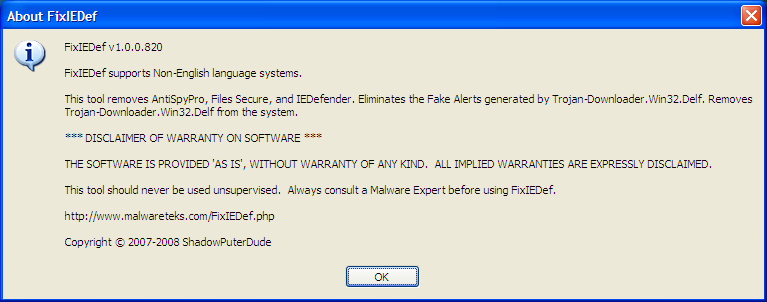
- Download FixIEDef.exe by ShadowPuterDude to the Desktop.
Note that FixIEDef.exe must be saved to desktop or it may not work properly
- Double-click FixIEDef on desktop.
- Click OK.
- Click Scan! to start scanning the system for trace of Trojan.Win32.Obfuscated.gx and related Trojans.
- Click OK.
- Wait for the scanning process to finish. Both file system and registry will be scanned.
Note that FixIEDef will kill all copies of Internet Explorer and Explorer that are running, during removal of malicious files. The icons and Start Menu on your Desktop will not be visible while FixIEDef is removing malicious files. This is necessary to remove parts of the infection that would otherwise not be removed. - Click Exit once FixIEDef displays the “All Finished” message.
- All FixIEDef log will be posted on the desktop. Review the content of the log if needed.



Manual Removal of FunnyUST Scandal.avi.exe
The problems caused by FunnyUST Scandal.avi.exe virus are :
1. Show Hidden Files and Folders not working.
2. My Computer Drives open another explorer window.
3. When you run a program, just in 2 or 3 minutes the program dissappears (Actually runs in background but you can not see its window in foreground).
Removal of FunnyUST Scandal.avi.exe
Manual Removal
Caution : While the manual process is going on, do not open any My Computer drive.
1. Open up cmd by typing cmd in Start –> Run.
2. Type in cmd
taskkill /f /im smss.exe
taskkill /f /im killer.exe
3. The virus placed some files at the root of every drive so you need to clean them.
Repeat the following commands on cmd for all your drives (Here it is applied for C drive)
del /a:h /f c:\autorun.inf
del /a:h /f c:\smss.exe
del /a:h /f c:\funny ust scandal.avi.exe
4. Now you need to delete files in windows folder so type :
del /a:h /f c:\windows\killer.exe
del /a:h /f c:\windows\autorun.inf
del /a:h /f c:\windows\smss.exe
del /a:h /f c:\windows\funny ust scandal.exe
5. Now you need to delete one more file :
del /a:h /f “%userprofile%\Start Menu\Programs\Startup\lsass.exe”
6. Use PowerExes to delete startup entries like.
smss.exe
lsass.exe(if it does not remove then only uncheck it)
killer.exe
7. To restore Folder Option Settings
Show Hidden Files And Folders Not Working
8. To Remove the virus from Flash Drive, Insert a flash drive cancel any Autoplay box.
Open cmd and type (Replace x by your usb drive letter)
del /a:h /f x:\autorun.inf
del /a:h /f x:\smss.exe
del /a:h /f x:\funny ust scandal.avi.exe
1. Show Hidden Files and Folders not working.
2. My Computer Drives open another explorer window.
3. When you run a program, just in 2 or 3 minutes the program dissappears (Actually runs in background but you can not see its window in foreground).
Removal of FunnyUST Scandal.avi.exe
Manual Removal
Caution : While the manual process is going on, do not open any My Computer drive.
1. Open up cmd by typing cmd in Start –> Run.
2. Type in cmd
taskkill /f /im smss.exe
taskkill /f /im killer.exe
3. The virus placed some files at the root of every drive so you need to clean them.
Repeat the following commands on cmd for all your drives (Here it is applied for C drive)
del /a:h /f c:\autorun.inf
del /a:h /f c:\smss.exe
del /a:h /f c:\funny ust scandal.avi.exe
4. Now you need to delete files in windows folder so type :
del /a:h /f c:\windows\killer.exe
del /a:h /f c:\windows\autorun.inf
del /a:h /f c:\windows\smss.exe
del /a:h /f c:\windows\funny ust scandal.exe
5. Now you need to delete one more file :
del /a:h /f “%userprofile%\Start Menu\Programs\Startup\lsass.exe”
6. Use PowerExes to delete startup entries like.
smss.exe
lsass.exe(if it does not remove then only uncheck it)
killer.exe
7. To restore Folder Option Settings
Show Hidden Files And Folders Not Working
8. To Remove the virus from Flash Drive, Insert a flash drive cancel any Autoplay box.
Open cmd and type (Replace x by your usb drive letter)
del /a:h /f x:\autorun.inf
del /a:h /f x:\smss.exe
del /a:h /f x:\funny ust scandal.avi.exe
What is krn132.exe? How to Remove?
krn132.exe is a dangerous virus that clears your hard disk.
The technical name for krn132.2x2 is Klez Trojan.
Klez Trojan is a trojan spread by mostly email, that in lots of cases, has actually removed all files on the infected computer
When [ W32.Klez.A | at | mm ] is executed, it does the following:
It copies itself to
%System%\Krnl132.exe
NOTE: %System% is a variable. The worm locates the \Windows\System folder (by default this is C:\Windows\System or C:\Winnt\System32) and copies itself to that location.
It adds the value
krn132 %System%\krn132.exe
to the registry key
HKEY_LOCAL_MACHINE\Software\Microsoft\
Windows\CurrentVersion\Run
so that it is executed when you start Windows.
The worm attempts to disable on-access virus scanners and searches local, mapped, and network drives. The worm copies itself using a random file name with a variable double extension, such as Filename.txt.exe.
In addition, the worm searches the Windows address book, which is used by Microsoft Outlook, for email addresses. The worm sends an email message to these addresses with itself as an attachment.
The email message has the following characteristics:
Subject: The subject of the email varies. It will usually be one of the following:
How are you?
Can you help me?
We want peace
Where will you go?
Congratulations!!!
Don't cry
Look at the pretty
Some advice on your shortcoming
Free XXX Pictures
A free hot porn site
Why don't you reply to me?
How about have dinner with me together?
Never kiss a stranger
Attachment: The attachment has a random file name with the .exe extension.
Message:
I'm sorry to do so,but it's helpless to say sorry.
I want a good job,I must support my parents.
Now you have seen my technical capabilities.
How much my year-salary now? NO more than $5,500.
What do you think of this fact?
Don't call my names,I have no hostility.
Can you help me?
This message may not be visible (this depends on the ability of the email client to display HTML email messages). If the message is received by Microsoft Outlook or Outlook Express, the attachment may be automatically executed. Information about this vulnerability and a patch are available at
http://www.microsoft.com/technet/security/bulletin/MS01-020.asp
Every other month starting in January (January, March, May, and so on), if the date is the 13th of the month, the payload is executed. This causes files on local and mapped drives to become zero bytes in length.
Removal
Points to ponder
Is it really worth your time and money (you could lose all your money in the bank if your password is compromised) to be worrying about these things?
It is always better to have a software that can protect your computer and you. Spywares are more dangerous than viruses, coz of the simple reason that they steal your information. Your banking account password is much more worthy to them than your computer. And thats what most of them are after.
The technical name for krn132.2x2 is Klez Trojan.
Klez Trojan is a trojan spread by mostly email, that in lots of cases, has actually removed all files on the infected computer
When [ W32.Klez.A | at | mm ] is executed, it does the following:
It copies itself to
%System%\Krnl132.exe
NOTE: %System% is a variable. The worm locates the \Windows\System folder (by default this is C:\Windows\System or C:\Winnt\System32) and copies itself to that location.
It adds the value
krn132 %System%\krn132.exe
to the registry key
HKEY_LOCAL_MACHINE\Software\Microsoft\
Windows\CurrentVersion\Run
so that it is executed when you start Windows.
The worm attempts to disable on-access virus scanners and searches local, mapped, and network drives. The worm copies itself using a random file name with a variable double extension, such as Filename.txt.exe.
In addition, the worm searches the Windows address book, which is used by Microsoft Outlook, for email addresses. The worm sends an email message to these addresses with itself as an attachment.
The email message has the following characteristics:
Subject: The subject of the email varies. It will usually be one of the following:
How are you?
Can you help me?
We want peace
Where will you go?
Congratulations!!!
Don't cry
Look at the pretty
Some advice on your shortcoming
Free XXX Pictures
A free hot porn site
Why don't you reply to me?
How about have dinner with me together?
Never kiss a stranger
Attachment: The attachment has a random file name with the .exe extension.
Message:
I'm sorry to do so,but it's helpless to say sorry.
I want a good job,I must support my parents.
Now you have seen my technical capabilities.
How much my year-salary now? NO more than $5,500.
What do you think of this fact?
Don't call my names,I have no hostility.
Can you help me?
This message may not be visible (this depends on the ability of the email client to display HTML email messages). If the message is received by Microsoft Outlook or Outlook Express, the attachment may be automatically executed. Information about this vulnerability and a patch are available at
http://www.microsoft.com/technet/security/bulletin/MS01-020.asp
Every other month starting in January (January, March, May, and so on), if the date is the 13th of the month, the payload is executed. This causes files on local and mapped drives to become zero bytes in length.
Removal
- (Only needed if you are not successfull in the normal mode) Restart in safe mode (Tip: As soon as you restart the computer press F8 before the windows screen appears. Select Safe mode)
- Search for the file krn132.exe and delete it.
- Delete the cookie named xww
- Delete the following registry values
- Go to your registry (start-->run-->enter regedit-->press OK)
- Search for krn132 (press ctrl+F and enter krn132)
- Delete where ever you find it.
Points to ponder
Is it really worth your time and money (you could lose all your money in the bank if your password is compromised) to be worrying about these things?
It is always better to have a software that can protect your computer and you. Spywares are more dangerous than viruses, coz of the simple reason that they steal your information. Your banking account password is much more worthy to them than your computer. And thats what most of them are after.